
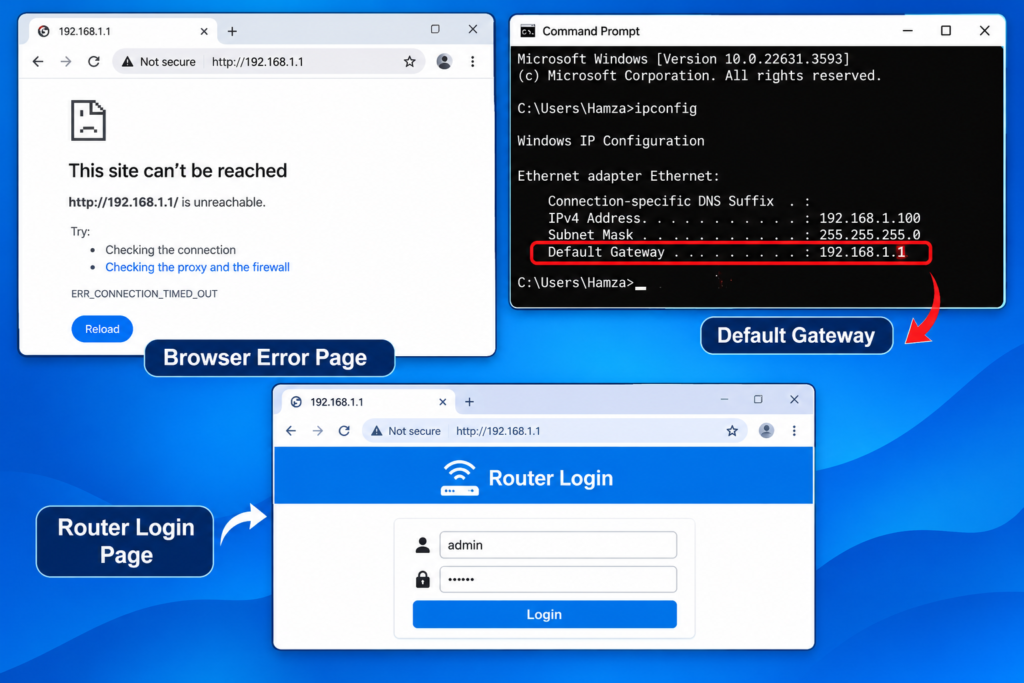
You type 192.168.10.1 into your browser, press Enter, and nothing happens. Maybe you get a blank screen. Maybe Chrome says “This site can’t be reached.” Either way, you just wanted to change a WiFi password or check a setting, and now you are stuck at the front door.
This is one of the most common problems people have with PTCL routers, and it is almost always easy to fix. In most cases the router is fine. The issue is the address you typed, the network you are connected to, or a setting on your phone or laptop.
Below are seven fixes, in the order I would try them. Start at the top and stop as soon as the login page opens.
Why the 192.168.10.1 Page Does Not Open
Every router has a private address that you can open in a browser to reach its settings page. For PTCL routers, that address is usually 192.168.1.1 or 192.168.10.1, depending on the model. Some devices print the address on a sticker at the back or bottom.
The page fails to open for a handful of simple reasons:
- Your router actually uses a different address
- You typed the address in the search box instead of the address bar
- Your phone or laptop is not connected to that router
- Mobile data, a VPN or a proxy is getting in the way
- The browser is holding on to old data
- The router is stuck and needs a restart
None of these need a technician. Let’s go through them.
Quick Checks Before You Start
Take thirty seconds to rule out the obvious:
- Is the router powered on, with the power and internet lights on?
- Is your device connected to the PTCL WiFi, or plugged in with a LAN cable?
- Did you type the numbers correctly, with dots between each group and no spaces?
A single wrong digit, like 192.168.10.l with a letter L instead of 1, is enough to break it. If all of that looks fine, move on to the fixes.
Fix 1: Type the Address in the Address Bar, Not in Google
This sounds too simple, but it catches a lot of people. If you type 192.168.10.1 into the Google search box on the home page, you get search results, not your router.
Click the long bar at the very top of the browser, where website addresses go. Type 192.168.10.1 there and press Enter. On a phone, tap the address bar at the top of Chrome or Safari, not the search field in the middle of a new tab page.
Fix 2: Try 192.168.1.1, or Find Your Real Router Address
Not every PTCL router uses 192.168.10.1. If the page will not load, try this one instead:
- 192.168.1.1
If that fails too, you can ask your own device for the correct address. It is called the default gateway, and it is the router’s address on your network.
On Windows
- Click Start, type cmd and open Command Prompt.
- Type ipconfig and press Enter.
- Look for Default Gateway. The numbers next to it are your router’s address.
On an iPhone Go to Settings, then Wi-Fi, tap the small i icon next to your network, and look for Router.
On Android Open Settings, then Wi-Fi, tap your connected network, and look for Gateway or Router. Some phones hide this under Advanced or View more.
Once you have the number, type it into the address bar and press Enter.
Fix 3: Make Sure You Are Connected to the Router
Your router’s settings page only opens when your device is on its network. If you are on mobile data or connected to a different WiFi, 192.168.10.1 simply does not exist for you.
On a phone, turn off mobile data while you try, because some phones quietly send traffic through mobile data when WiFi has no internet. Then confirm the WiFi name at the top of the list is your PTCL network.
This catches people who have a second router or a range extender. If your phone has jumped to the extender’s network, the address may be different, or the page may not load at all. Connect to the main PTCL network and try again.
Fix 4: Use HTTP and Ignore the Security Warning
Many router pages load over plain HTTP, not HTTPS. Modern browsers sometimes try to force a secure connection and then fail, or show a warning.
Type the address with http:// at the front, like this:
http://192.168.10.1
If the browser warns you that the connection is not private, remember that this page is inside your own home network, so the warning is about a missing certificate, not a stranger watching you. Choose Advanced and then Proceed, but only for your own router address.
Fix 5: Try Another Browser and Clear the Clutter
Sometimes the browser itself is the problem. Old saved data, an extension or a proxy setting can block local addresses.
Try these in order:
- Open a private or incognito window and load the address again.
- Try a different browser, such as Edge, Firefox or the default browser on your phone.
- Turn off any VPN app. A VPN sends your traffic through another country, so your router’s local address cannot be reached.
- Clear the browser cache and cookies, then try once more.
If it works in one browser but not another, you have found the culprit and can simply use the one that works.
Fix 6: Use a LAN Cable and Check Your IP Settings
Wireless connections can be unreliable when you are fighting with a router. A cable removes that variable.
Plug one end of a LAN cable into the router and the other end into your laptop. Wait for the connection to settle, then open the address again.
If you still cannot reach the page on Windows, check that your computer is set to get its address automatically:
- Open Control Panel and go to Network and Sharing Center.
- Click Change adapter settings.
- Right-click your connection and choose Properties.
- Select Internet Protocol Version 4 (TCP/IPv4) and click Properties.
- Make sure both Obtain an IP address automatically and Obtain DNS server address automatically are selected.
- Click OK and try the address again.
If someone set a fixed IP on your computer in the past, this is often the hidden reason the router page refuses to open.
Fix 7: Restart the Router, and Reset It Only as a Last Resort
Routers run for weeks without a break, and sometimes they just freeze. A restart clears most temporary problems.
Unplug the power cable, wait about thirty seconds, then plug it back in. Give it two to three minutes to start fully before you test again. Do not skip the waiting time, because the router can look ready before it really is.
If the page still does not open, a factory reset is the final option. Be careful here. A reset wipes your WiFi name, your password and any custom settings. On some connections it can also erase the details that let your router connect to the internet, which means you may lose your connection until those details are entered again.
So before you press and hold the small reset button, call PTCL support and ask whether your setup needs anything saved first. If you are told it is safe, hold the reset button for about ten seconds with a pin or paper clip, and wait for the router to restart. Then log in with the default username and password printed on the sticker.
Still Not Working? When to Call PTCL
If you have tried all seven fixes and the login page still will not open, the router may have a fault, or your connection may be managed in a way that limits access to the settings page. At that point it is worth contacting PTCL support or visiting your nearest service center.
When you call, tell them which fixes you already tried. It saves time and helps them skip the basic steps. Keep your router model, found on the sticker, ready as well.
Frequently Asked Questions
What is the default IP address for a PTCL router? It is usually 192.168.1.1 or 192.168.10.1. The right one depends on your model, and you can confirm it from the sticker or your device’s gateway setting.
Why does 192.168.10.1 say “This site can’t be reached”? Usually because your device is not connected to the router, the address is wrong for your model, or a VPN or mobile data is interfering. Check your connection and try 192.168.1.1.
Can I open the router page on my phone? Yes. Connect to the PTCL WiFi, turn off mobile data, open a browser and type the address in the address bar. If the page looks cramped, switch to desktop view.
What is the default username and password? They are normally printed on a sticker on your router. If someone changed them before, the sticker will no longer work, and you may need a reset.
Will a reset remove my internet connection? It can on some setups, because a reset may erase the settings your router uses to go online. Talk to PTCL support before you reset.
Is it safe to open my router settings page? Yes, as long as you are using your own router’s local address. Do not enter your router login on any website that asks for it outside your home network.
Final Words
When 192.168.10.1 will not open, the cause is almost never serious. Check that you typed the address in the right place, try 192.168.1.1, make sure you are on the router’s own network, switch browsers, and use a cable if WiFi is acting up. A restart fixes a surprising number of cases, and a reset should wait until you have spoken to PTCL.
Once you are in, you can change your WiFi password, rename your network or check which devices are connected. If you are ready for that next step, our guide on changing your PTCL WiFi password from a phone or laptop walks you through it.