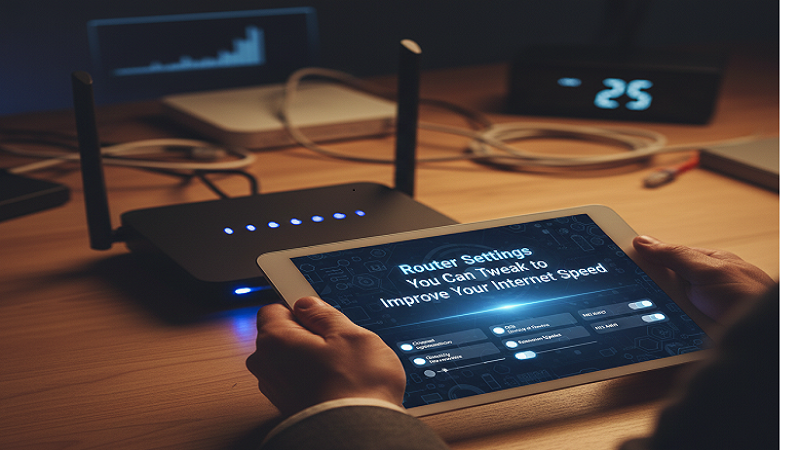
A slow internet connection is one of the most annoying things in the world, right next to a bad hair day. However, if you make the right choices, you can ensure that you make the most out of your internet speed. For instance, opting for a great internet service can give you the internet speed that you want and are looking for.
For instance, Verizon internet gives you the kind of internet plans that give you optimized, high-speed internet, along with a price that doesn’t break the bank. Other than that, your router has a huge role to play in your internet speed as well.
There are some settings that you can tweak to drastically improve your internet speed, provided that you already have a spotty internet speed.
Here are some settings that you should test out for better internet performance.
Switch the Router to a 5 GHz Band
Reading this article definitely means that you are looking for an increase in your internet speed, right?
One of the easiest ways to do that is to switch the Wi-Fi band on your router to the 5 GHz band, which compromises your internet signals but gives you better internet speed.
However, it’s even better if you get a dual-band router for yourself since it can run on both the 2.4 GHz and 5 GHz bands at the same time. Not only does the 5 GHz band give you greater internet speed at a shorter distance, but the 2.4 GHz band ensures that you get internet signals at a greater distance.
Consider Changing Your Wi-Fi Channel
It may be very likely that your internet connection is slow because of overlapping network channels, causing interference. Therefore, you must change your network to one that isn’t congested, so that there isn’t any interference.
While on the 2.4 GHz band, you should try shifting your channels to 1, 6, or 11.
If you can’t figure out which network channel would work the best for you, then you can use a Wi-Fi analyzer tool that can automatically fetch and tell you a less crowded channel on both your 2.4 GHz and 5 GHz bands.
Adjust Your Channel Width
Having a wider channel for your Wi-Fi can give you greater internet speed, but it also increases your interference.
If you are running your Wi-Fi on a 5 GHz band, then an 80 MHz channel would work best for you. This hits the sweet spot between your speed and internet reliability, making the internet connection a lot more consistent.
You may also change your channel width to 40 MHz, which increases your internet range as well, if you prefer having more signal range over having internet speed. Since internet speed is the main concern here, I recommend that you change the channel width to 80 MHz.
Update Your Router’s Firmware
There’s no point in expecting a fast internet connection if your router is running on an older firmware version. Therefore, it is necessary that you keep your router’s firmware up to date by heading to the router portal mentioned on the underside of your router.
Once you flip your router upside down, you’ll see an IP address that you will have to enter in your browser.
You’ll also see login credentials on the underside of your router, enter them on the portal, and this will give you access to your router’s settings. Make sure you check for updates periodically so that you can keep your router up to date.
Change Your DNS Server
Changing your DNS server on your devices can help a lot with your internet response. While this isn’t directly a router setting change, it can still help you get a better output from your internet. All you have to do is set your DNS server to a custom one.
I recommend changing it to either Cloudflare’s 1.1.1.1 or Google’s 8.8.8.8. As a personal preference, I recommend using Google’s DNS server so that you have an optimal internet response. This makes your address lookups faster and can also make your gaming experience better on a PC or a PlayStation 5.
Adjust the Router’s Power Management
It may be likely that your router’s power-saving mode is on because of the default settings. You can confirm that by heading to the portal and accessing the router’s settings. There, you can confirm whether the power saving settings are on or off.
If they are on by default, you should turn them off since they can hinder your internet’s performance.
By switching settings, your router will work in a hypothetical performance mode, giving you the most out of your internet service.
There are also some other settings that you can tweak to improve your internet speed. For instance, you can disable unnecessary features such as Guest Network Mode or Universal Plug-n-Play (UPnP). Doing so can reduce the load on your router and make it perform better.