It happens to almost everyone. A guest asks for the WiFi password, and you realize you have no idea what it is. Or you finally remember it, log in to the router to change it, press Save, and the old password stays exactly where it was.
Both problems are common with PTCL routers, and both can be solved without calling anyone. This guide covers three things: how to find a password you forgot, why a new password sometimes refuses to change, and how to find the reset button and use it safely when nothing else works.
Start with the section that matches your situation.
Part 1: How to Find Your Forgotten PTCL WiFi Password
Before you reset anything, try to recover the password. A reset should be your last choice, because it wipes your settings. There are four easy places to look.
Check the sticker on the router
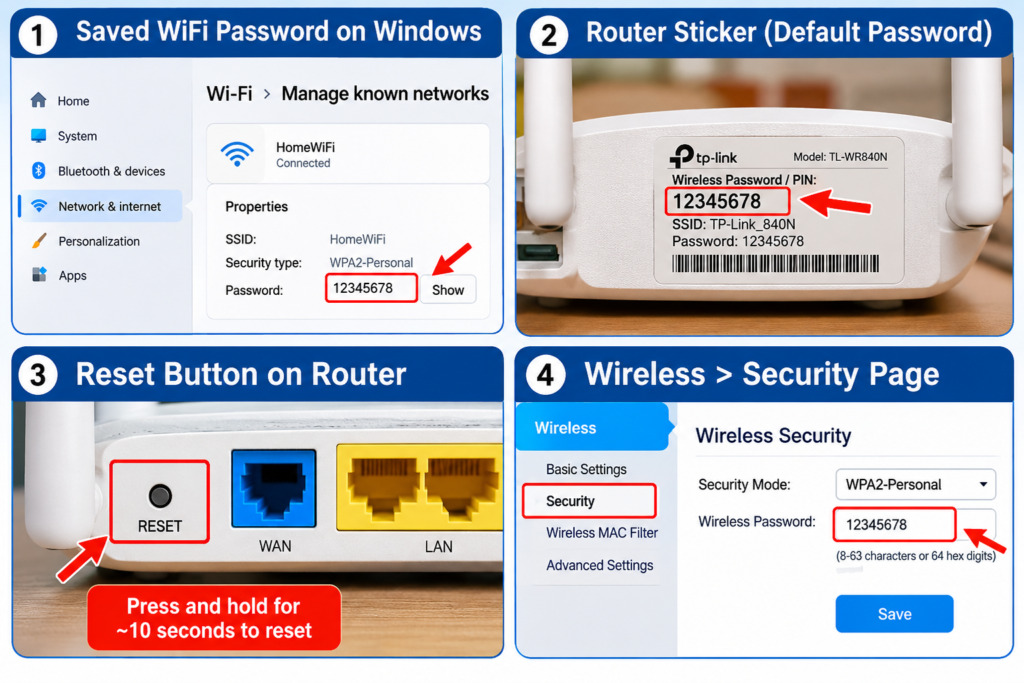
If nobody has ever changed your password, the original is usually printed on a sticker on the back or bottom of the router. Look for a line named WiFi Password, WPA Key, Wireless Key or something similar. Take a photo of it with your phone so you never have to flip the router over again.
Look on a Windows laptop that is already connected
If any Windows computer has connected to your WiFi before, it has saved the password. Here is how to see it:
- Open Control Panel and go to Network and Sharing Center.
- Click your WiFi name next to Connections.
- Click Wireless Properties, then open the Security tab.
- Tick Show characters. The password appears in the Network security key box.
You will need administrator rights on the computer for this to work.
Look on your phone
Phones that are connected to your WiFi can often show or share the password.
- Android: Open Settings, go to Wi-Fi, and tap your connected network. Choose Share, and confirm with your fingerprint or PIN. Many phones show the password in text under the QR code. On some models you may only get the QR code, which another phone can scan to join.
- iPhone: On iOS 16 and newer, go to Settings, then Wi-Fi, tap the small i next to your network, and tap Password. You will need Face ID, Touch ID or your passcode.
Log in to the router
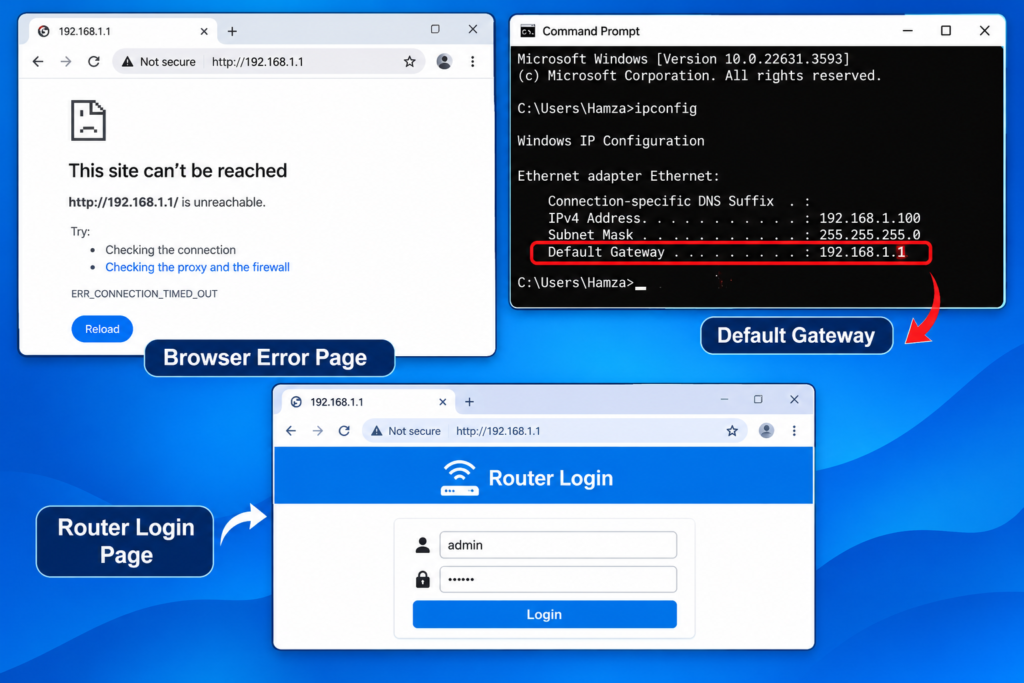
If you can open the router settings page, you can see or change the password from there. Connect to the router, type 192.168.1.1 or 192.168.10.1 into the address bar, and log in with the admin details from the sticker. Then go to Wireless, open Security, and look at the WPA key or password field. Some routers hide the characters, and you can change them anyway.
If the page will not open, our guide on what to do when 192.168.10.1 is not opening walks you through the fixes.
Part 2: Why Your PTCL WiFi Password Is Not Changing
So you have logged in, typed a new password and saved it, but it does not seem to work. Here are the usual reasons.
You did not click Apply or Save
This sounds obvious, but many router pages have a Save button at the very bottom, and it is easy to miss when the page needs scrolling. Scroll down and click Apply, Save or Submit after every change. Wait for the confirmation before you leave the page.
You changed only one band
Many PTCL routers send out two networks, one on 2.4 GHz and one on 5 GHz. Each band can have its own password. If you changed only one, devices on the other band keep using the old password. Check both bands and update each one, or give them the same password to keep things simple.
The new password does not meet the rules
WiFi passwords for WPA and WPA2 need to be between 8 and 63 characters. If yours is shorter, the router may reject it or quietly keep the old one. Some routers also dislike certain special characters or spaces at the start or end. If the change will not save, try a password with only letters and numbers, at least 12 characters long, and see if that goes through.
Your devices are still using the old saved network
Sometimes the password did change, but your phone keeps trying the old one. Go to your WiFi settings, tap your network, and choose Forget. Then connect again and enter the new password. Do the same on every device that refuses to join.
The page timed out
Router pages log you out after a few minutes of no activity. If you took a long time typing, your save may have failed without a clear error. Refresh, log in again and repeat the change in one go.
You are logged in with a limited account
Some routers have a standard user login that can view settings but not change them. Make sure you are using the admin login. If you only have the user details, the changes may not save.
The router needs a restart
If everything above looks fine, restart the router. Unplug the power, wait thirty seconds, plug it back in, and give it two to three minutes to start fully. After that, try the new password again.
Part 3: Where Is the Reset Button on a PTCL Router?
If you have forgotten both the WiFi password and the admin password, and nothing above worked, a factory reset brings the router back to its original settings. That includes the original WiFi password and admin login on the sticker.
Finding the reset button
On most routers, the reset button is on the back panel, close to the power and LAN ports. It is usually a tiny hole with the word Reset printed next to it, so you cannot press it by accident. You need a pin, a paper clip or a SIM ejector tool.
Be careful not to confuse it with other buttons. Many routers also have a WPS button or a WiFi on/off button, and those are normal buttons that sit on the surface. Pressing them will not reset anything. If you cannot find the hole, check the router’s sticker or the model number on the bottom and search for it online.
How to reset the router
- Keep the router powered on.
- Push the pin gently into the reset hole.
- Hold it down for about ten seconds, until the lights blink or turn off and on.
- Release the button and wait two to three minutes while the router restarts.
- Connect using the default WiFi name and password from the sticker.
Read this before you reset
A factory reset removes more than your WiFi password. It also erases your WiFi name, any custom settings and, on some connections, the internet login details that let the router go online. If that happens, your router may connect to WiFi but show no internet until those details are entered again.
If you do not have those details, or you are not sure whether you need them, call PTCL support before you reset. They can tell you what to keep ready and may be able to restore the settings for you.
After the Reset: Set It Up Safely
Once the router is back online, do these things right away:
- Change the WiFi password to something new and strong
- Change the admin password too, so the sticker details no longer work
- Rename the WiFi network if you like
- Write the new details somewhere safe, or save them in a password manager
If you need the steps, follow our guide on changing the PTCL WiFi password from a mobile or laptop.
Tips to Never Forget Your Password Again
- Take a clear photo of the router sticker and keep it in a private album
- Use a password manager to store your WiFi and router passwords
- Choose a long phrase instead of random characters, because it is easier to remember
- Share the WiFi with guests through the phone’s QR code option instead of reading the password out loud
Frequently Asked Questions
How can I find my PTCL WiFi password without resetting the router? Check the router sticker, look at the saved password on a connected Windows laptop or phone, or log in to the router settings page and open Wireless then Security.
Why will my PTCL WiFi password not change? The usual causes are forgetting to click Apply, changing only one of two bands, using a password shorter than 8 characters, or not forgetting the old network on your devices.
Where is the reset button on a PTCL router? Usually on the back panel as a small recessed hole marked Reset. You need a pin or paper clip to press it. Hold it for about ten seconds while the router is on.
Will resetting my router delete my internet connection? It can on some setups, because the reset may remove the details your router uses to connect online. Ask PTCL support first if you are unsure.
What is the default PTCL WiFi password? It differs by router and is printed on the sticker. The default only works if it has never been changed or the router has been reset.
Can PTCL tell me my WiFi password? Support may be able to help you reset it or guide you through recovery, but they will usually ask you to verify your account first. Keep your account details ready when you call.
Final Words
Forgetting a WiFi password is annoying, but it is rarely a big problem. Try the easy options first: the sticker, a saved device, or the router settings page. If your new password refuses to stick, check Apply, both bands and the password rules. Keep the reset button as the last step, and speak to PTCL before you press it if your connection depends on saved settings.
Once you are back in, set a strong password, write it down somewhere safe, and the next time a guest asks, you will have the answer ready.