
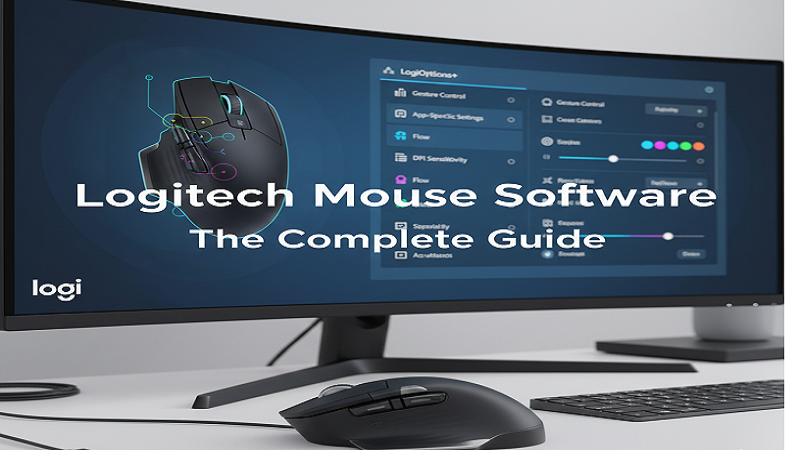
Logitech mice are widely known for their reliability, precision, and advanced customization options. To unlock their full potential, Logitech provides dedicated software that allows users to configure buttons, adjust sensitivity, update firmware, and personalize their devices according to their needs. In this article, we will explore how to download Logitech mouse software, its key features, installation steps, and the latest updates.
What is Logitech Mouse Software?
Logitech mouse software is an official utility that helps users manage and customize Logitech peripherals such as wireless mice, gaming mice, and productivity devices. The most commonly used software platforms include:
-
Logitech Options (for general users)
-
Logitech Options+ (latest version with improved UI and features)
-
Logitech G HUB (for gaming devices)
These tools allow users to fully control their mouse settings and enhance productivity or gaming performance.
Key Features of Logitech Mouse Software
1. Button Customization
Users can assign different functions to mouse buttons such as copy, paste, back, forward, or even launch specific applications.
2. DPI Sensitivity Adjustment
Adjust pointer speed and sensitivity levels to match your workflow or gaming style.
3. Device Profiles
Create multiple profiles for different applications and switch automatically when needed.
4. Battery Monitoring
Check battery levels for wireless Logitech mice to avoid unexpected shutdowns.
5. Firmware Updates
Keep your device up-to-date with the latest improvements and bug fixes.
6. Gesture Controls
Some Logitech mice support gesture-based commands for multitasking efficiency.
7. Cross-Device Control
Control multiple computers using one mouse with Logitech Flow (available in Options/Options+).
How to Download Logitech Mouse Software
Follow these simple steps to download the correct software:
Step 1: Visit the Official Logitech Website
Go to the official Logitech support or downloads page.
Step 2: Search Your Mouse Model
Enter your mouse model name (e.g., MX Master, M185, G502).
Step 3: Choose the Software
-
For office/productivity mice → Logitech Options or Options+
-
For gaming mice → Logitech G HUB
Step 4: Download and Install
Click the download button, run the installer, and follow on-screen instructions.
Installation and Setup Guide
-
Download the software from the official Logitech website.
-
Run the installer file.
-
Connect your mouse via USB receiver or Bluetooth.
-
Open the software after installation.
-
Detect your device automatically or add it manually.
-
Customize settings according to your preference.
Latest Updates in Logitech Options+
The newer Logitech Options+ offers several improvements:
-
Modern and user-friendly interface
-
Faster device detection
-
Better performance and stability
-
Enhanced customization options
-
Improved compatibility with newer devices
-
Regular bug fixes and updates
Logitech is gradually replacing the older Options software with Options+, making it the recommended choice for most users.
Troubleshooting Common Issues
Mouse Not Detected
-
Reconnect the USB receiver
-
Try a different USB port
-
Ensure Bluetooth is enabled
Software Not Opening
-
Reinstall the latest version
-
Check system compatibility
-
Update your operating system
Settings Not Saving
-
Run software as administrator
-
Ensure device is properly connected
Conclusion
Logitech mouse software plays a crucial role in unlocking the full capabilities of your device. Whether you are a casual user or a professional gamer, using tools like Logitech Options+, Options, or G HUB can significantly enhance your experience. With easy setup, powerful customization, and regular updates, Logitech continues to provide excellent support for its users.